Introduction
OpenVolunteer is a complete staff and volunteer management solution designed for nonprofit organizations, conventions, and community-driven initiatives. It provides structure around people, time, and operational units so that organizations can clearly manage teams, track participation, and generate meaningful reports.
At its core, the application provides clear visibility into your org: who your staff members are, who is actively volunteering, where coverage gaps exist, and how much each person is contributing over time.
This application is for managing volunteers, this application is NOT a payroll solution!
What this application is
This application is a structured staff and volunteer management platform built on Laravel. It is designed to support organizations that:
- Runs recurring events or conventions
- Operate multiple programs under one parent organization
- Track volunteer hours for reporting or recognition
- Need clearer organizational boundaries between operational units
- Require structured staff management alongside volunteer coordination
It is especially well-suited for organizations that are volunteer-led, multi-departmental, and operate on event-based or yearly cycles.
Complete staff and volunteer management
This platform goes beyond simple hour logging. It provides a full operational framework that includes:
-
Volunteer hour tracking
Volunteers can log hours that are categorized by Sector, Department, and Fiscal Ledger, enabling accurate reporting and recognition.
-
Self-service volunteer assignments
Volunteers can view available opportunities and assign themselves to events or shifts based on permissions and availability. This reduces administrative overhead and empowers volunteers to engage directly.
-
Shift scheduling and tracking
Departments can create shifts tied to events, define time ranges, and manage staffing needs. Volunteers can sign up, and leadership can monitor coverage and attendance.
-
Staff role management
Leaders and department heads can be assigned structured roles within sectors and departments, allowing for scoped permissions and oversight.
Together, these features create a unified system for managing people, schedules, and contribution records within a single application.
Getting Started
OpenVolunteer is designed to be flexible in how it is deployed. Organizations may choose to self-host the application on their own infrastructure, or deploy it using a managed SaaS platform that integrates directly with GitHub for streamlined updates and maintenance.
Because this is a Laravel-based application, it follows standard modern PHP application patterns. If your organization already has experience managing web infrastructure, self-hosting may be a natural fit. If not, a hosted SaaS deployment model is strongly recommended for simplicity and long-term sustainability.
SaaS Deployment (Recommended)
For most volunteer-driven nonprofits and community organizations, deploying to a SaaS platform that integrates directly with GitHub is the preferred option.
Modern application hosting platforms allow you to:
- Connect directly to your GitHub repository
- Automatically deploy on push to main or release branches
- Configure environment variables via a web dashboard
- Scale infrastructure as usage grows
- Enable automated backups
- Monitor performance and uptime
This approach significantly reduces infrastructure overhead and allows your team to focus on managing volunteers rather than managing servers.
SaaS deployment is especially recommended if:
- Your organization does not have dedicated IT staff
- Infrastructure management would fall to volunteers
- You want predictable monthly costs
- You prefer automated deployments and updates
Recommended Workflow
Regardless of hosting model, the recommended workflow is:
- Fork or clone the official OpenVolunteer repository.
- Maintain your organization’s configuration in environment variables.
- Use GitHub for version control and release tracking.
- Deploy either to your own infrastructure or through a SaaS provider that supports Laravel applications and GitHub integration.
Installation
OpenVolunteer is a standard Laravel application and can be deployed anywhere PHP is supported. While it may be installed on traditional VPS infrastructure, the recommended approach—especially for volunteer-run organizations—is to deploy using a managed Laravel hosting platform such as Laravel Cloud.
Using a managed Laravel-native platform significantly reduces operational complexity, improves reliability, and allows your organization to focus on volunteers rather than infrastructure.
If your organization prefers to self-host, the following minimum requirements apply:
- PHP 8.2+
- Composer
- MySQL 8+ or PostgreSQL 14+
- Node.js 18+
- A web server
- Supervisor or systemd for queue workers
- SSL certificate
Laravel Cloud
This walkthrough is assuming you're using Laravel Cloud, but adjust the steps for any other provider.
First, Go to https://cloud.laravel.com/ and create an account. Create a company (or individual) account with the "Starter" plan. Then complete the steps to deploy.
Fork and Create App
- Login / Create a Github account.
- Go to the github repo and fork it using the Fork button in the top right.
- You can leave the owner as yourself or set it to an org account.
- Name can remain openVolunteer or whatever you choose.
- Leave "Copy the Main Branch Only" checked
- Back on Laravel cloud, Connect your GitHub account.
- Create your first application.
- Choose Github
- Import a Repository
- Select the repo you forked in step 2.
- For Region, choose something that makes sense for where you’ll be using this primarily. (Example: US East)
- Click “Create Application”
Setup Resources
- Under “App Cluster”, this is your web server.
- You can leave this be.
- You may want to disable “Hibernation”
- Add a Database Resource
Databases house all your data that is entered into the application. Your volunteers/users, departments, hours, shifts, everything.
- Click “Add Resource”, then “Database”
- You can leave Name alone
- You can select Laravel MySQL or Postgres
- Region: Leave as the same region you selected before.
- Configuration, you can leave this as “Dev” for now
- Click "Create Database Cluster"
- Add a Bucket Resource.
Buckets are storage for images and other resources. This will be used to set your app icon and other files. It will be barely used (at this time).
- You can leave the name be.
- Visibility change to “Public”
- Allowed origins: You can leave be
- Click “Create bucket”
- On the next page, leave “Disk name” alone, and click “Add Bucket”.
- You should have a database, and a bucket.
- Now you can go ahead and click on “Deploy” in the top right.
- Once its done deploying, it should have no errors. You can access it by going to the Cloud domain they create for you.
Once you are ready to start using it properly, you may want to setup a Custom Domain and setup a Mail Server connection.
Self-Hosting (Non-SaaS)
High-level installation steps:
- Fork/Clone the repository.
- Run
composer install. - Run
npm install && npm run build. - Copy
.env.exampleto.envand configure. - Generate an application key:
php artisan key:generate - Run migrations:
php artisan migrate - Configure queue workers and scheduler.
- Queue workers may be used in future updates.
- Configure web server and SSL.
Sending Email
This application sends email for things like invitations, password resets, notifications, and other system messages. Laravel supports multiple mail “drivers” (SMTP, API providers, etc.). In most cases, SMTP is the simplest and most portable option, and it works the same way whether you host this app yourself or deploy it via Laravel Cloud.
What you’ll need
Before configuring anything, gather the following from your email provider:
- Mail host (example: smtp.mailgun.org, smtp.sendgrid.net, smtp.office365.com)
- Mail port (commonly 587 for STARTTLS, 465 for implicit TLS)
- Username and password (or an API-specific SMTP credential)
- Encryption type (tls or ssl)
- A “From” address and name (what recipients see)
Recommended: Use a dedicated sending domain (like mail.yourorg.org) and make sure SPF, DKIM, and DMARC are configured with your email provider. This improves deliverability and reduces the chance of messages going to spam.
SMTP
Laravel Cloud setup
-
Open your Environment Variables settings in Laravel Cloud
-
Add the mail variables
MAIL_MAILER=smtp MAIL_HOST=your.smtp.host MAIL_PORT=587 MAIL_USERNAME=your_smtp_username MAIL_PASSWORD=your_smtp_password MAIL_ENCRYPTION=tls MAIL_FROM_ADDRESS=no-reply@yourorg.org MAIL_FROM_NAME="Your Organization" -
Deploy/redeploy so the new variables take effect
After updating environment variables, trigger a deploy (or redeploy) so the running application picks up the changes. If the platform caches configuration during build/runtime, redeploying is the simplest way to ensure everything is applied cleanly.
Self-hosted setup
-
Configure your .env file On your server, set the following environment variables. These keys are standard Laravel mail settings:
MAIL_MAILER=smtp
MAIL_HOST=your.smtp.host
MAIL_PORT=587
MAIL_USERNAME=your_smtp_username
MAIL_PASSWORD=your_smtp_password
MAIL_ENCRYPTION=tls
MAIL_FROM_ADDRESS=no-reply@yourorg.org
MAIL_FROM_NAME="Your Organization"
Notes: If your provider uses port 465, set MAIL_PORT=465 and MAIL_ENCRYPTION=ssl. Some providers require MAIL_ENCRYPTION=null (rare). If so, omit it or set it to an empty value.
-
Clear and rebuild config cache (production)
If your deployment uses config caching (common in production), update the cache so Laravel picks up the new environment values:
php artisan config:clear
php artisan config:cache
API Provider
Laravel can also send through API-based providers (depending on your Laravel version and installed packages). If your organization prefers an API provider (like Mailgun, SES, Postmark, or Resend).
The key idea remains the same: set the mailer/driver and provider credentials via environment variables, whether self-hosted or in Laravel Cloud.
WordPress Login
This application can optionally integrate with an existing WordPress installation to allow users to sign in using their WordPress account. This is intended for organizations that already run a WordPress site (for membership, content, or community operations) and want a single shared login identity across both platforms.
This is an advanced feature. It requires direct connectivity to the WordPress database (read access at minimum), and it assumes your WordPress site is already managing users.
What this integration does
When enabled, the application can:
- Authenticate users against WordPress user records. Optionally associate a Laravel user account with a WordPress user ID.
- Allow “existing WordPress users” to access the volunteer portal without creating a separate password.
What it does not do by default
This integration does not automatically:
- Manage WordPress users (create/delete/update) unless you explicitly build that behavior.
- Share WordPress sessions/cookies (this is not “SSO via WordPress cookies”).
- Sync profile fields beyond what you choose to map.
Prerequisites
Before enabling this:
- You have access to the WordPress database credentials (host, database name, username, password).
- Your Laravel application can reach that database host over the network.
- Your WordPress site’s users table prefix is known (commonly wp_, but not always).
- You understand that network/database exposure is a security boundary. Prefer least-privilege credentials.
While not required, its recommened you create a dedicated MySQL user for this integration with the minimum permissions required. In most cases: SELECT only is sufficient since we're only authenticating and reading user metadata.
Environment variables (.env)
Add these variables to your Laravel application environment.
WP_DB_HOST=127.0.0.1
WP_DB_DATABASE=wordpress
WP_DB_USERNAME=wordpress_reader
WP_DB_PASSWORD=your_password_here
WP_DB_PREFIX=wp_
Common Troubleshooting
Mail sending issues
Password reset emails never arrive, invites don’t send, or you see mail errors in logs.
Common causes and checks:
- Incorrect SMTP host/port/encryption. Port 587 typically uses tls (STARTTLS), port 465 typically uses ssl.
- Blocked outbound SMTP from your hosting provider. Some hosts restrict SMTP ports.
- Unverified sender/domain. Some providers require the From address or domain to be verified.
- Config cache not refreshed. If you changed .env values, clear and rebuild config cache.
Site takes several seconds to respond
After a deploy or a period of inactivity, the site takes several seconds before it starts responding normally. Subsequent requests are fast.
This is commonly caused by “cold start” behavior. Depending on your runtime and platform settings, an application instance may need to spin up (or “warm up”) before it can handle requests at full speed. During that window, PHP may be booting the application, caches may be warming, and dependencies may be loading for the first time.
If this is happening on Laravel Cloud, disable "Hibration" on the database and/or web server.
Fiscal Ledgers
Ledgers are required and must be defined.
A Fiscal Ledger in this volunteer-hour tracking system represents a defined period of time during which volunteer hours are tracked and reported together. Think of it like a “reporting year” or “hours accounting period.”
Nonprofit organizations often need to separate volunteer time into distinct reporting buckets, for example a convention year, a calendar year, or a grant period. Because hours may need to be exported, counted toward different recognition programs, or reported to funders differently. Tracking hours in separate ledgers helps ensure clarity and organization.
In accounting terms, a ledger collects a set of related activity within a named period so you can summarize, analyze, and report that activity as a group. For volunteer hours, a fiscal ledger might cover a defined span like January 1 – December 31 of a calendar year, or June to May for an event cycle. It serves as the authoritative grouping for all hour entries that should be counted together.
Without ledgers, all volunteer hours would live in a single undifferentiated table. Ledgers give structure: you can ask “how many hours were served in 2026?” or “how many hours went to on-site roles vs virtual for the 2025 convention cycle?” or “which volunteers crossed 100 hours this ledger?”.
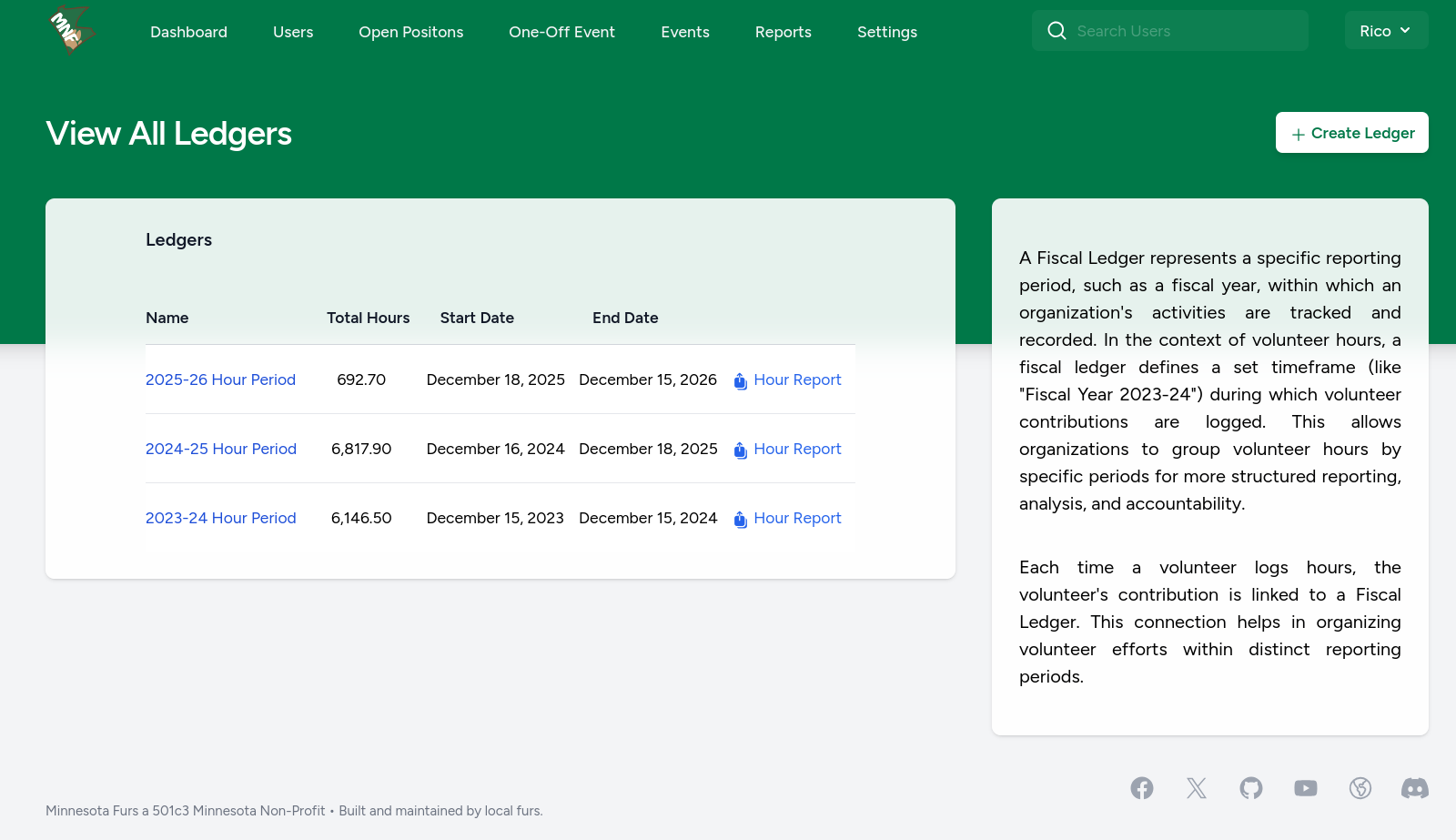
Creating a Ledger
- Log in as an admin or user with ledger-management permissions.
- Navigate to Settings > Fiscal Ledgers (or similar).
- Click "Create Ledger".
- Enter a Name such as “2026 Convention Year”.
- Enter a Start Date and End Date that define the period you want to track. (Example: Start 2026-01-01, End 2026-12-31.)
- Save the ledger.
Sectors
A Sector represents an operational unit within your organization. It is a structural layer used to group events, volunteers, departments, and reporting boundaries under a defined branch of activity.
If your parent organization runs multiple independent initiatives, programs, or conventions, each of those should typically be created as its own Sector.
Conceptually, a Sector allows one organization to operate multiple semi-independent divisions within a single system while maintaining clean data separation and reporting clarity.
Example Structure
- Parent Organization: Great Conventions
Under that organization, you might create three sectors:
- Cartoon Con
- BookFest
- Cars and Coffee
Each of these would function independently in the system, even though they belong to the same parent organization.
Departments
Departments primarily are used for tracking Staff within your organization. If you dont plan on tracking staff within the application, this can likely be safely skipped.
A Department is a functional unit within a Sector. While a Sector defines the operational branch (such as a convention or program), a Department defines the specific area of responsibility within that branch.
If a Sector represents "what we are running," a Department represents "who is responsible for which part."
Example Structure
- Parent Organization: Great Conventions
- Sector: Cartoon Con
- Departments within Cartoon Con might include:
- Registration
- Programming
- Logistics
- Guest Relations
- IT
- Security
Each department operates within its sector and helps organize volunteers, responsibilities, and reporting.
Perks
The Volunteer Perks system lets staff create tiered reward programs tied to volunteer hours. Volunteers can track their progress toward each perk in real time, and staff can manage perks, monitor who has earned them, and handle physical reward redemptions.
Feature flag: The perk tracking system is controlled by the
perk_trackingapplication setting. It must be enabled before any perk pages are accessible.
Concepts
Perk Sets
A Perk Set is a container that groups related perks together — typically for a single convention year or event season. Each set can be scoped to a fiscal year, given a visibility window, and toggled active/inactive independently of the perks inside it.
Perks
A Perk is a single reward threshold within a set. It defines the minimum volunteer hours required to earn it, what the volunteer receives, and how progress is measured.
Hour Sources
Each perk can measure hours in one of two ways:
| Mode | How it works |
|---|---|
| Event-linked | One or more specific events are attached to the perk. Only hours from signed-up, non-no-show shifts belonging to those events count. |
| General hours | No events are linked. All approved VolunteerHours records count, optionally filtered to the perk set's fiscal year. |
Admin: Managing Perk Sets
Navigate to Admin → Perk Sets.
Creating a Perk Set
-
Click Create Perk Set.
-
Fill in the fields:
Field Description Set Name Display name shown to volunteers (e.g., MNFurs 2026 Perks). Description Optional short description shown on the volunteer perks page. Fiscal Year Links the set to a fiscal ledger. General-hours perks in this set will only count hours from that fiscal year. Visible From Date the set starts appearing to volunteers. Leave blank to make it visible immediately once active. Visible Until Date the set stops showing on the main perks page and moves to Perk History. Leave blank to keep it visible indefinitely. Sort Order Controls the display order relative to other sets. Lower numbers appear first. Active Uncheck to hide the set from volunteers entirely, regardless of the visibility window. -
Click Create Perk Set.
Status Badges
Each set in the list shows one of the following statuses:
| Badge | Meaning |
|---|---|
| Active | Visible to volunteers right now. |
| Upcoming | Active but Visible From is in the future. |
| Archived | Visible Until date has passed; shown on the volunteer history page. |
| Inactive | Manually deactivated; hidden from volunteers. |
Deleting a Perk Set
Deleting a set does not delete the perks inside it. Those perks become unassigned and will appear in the "Unassigned Perks" group on the Perks admin page.
Admin: Managing Perks
Navigate to Admin → Perks.
Perks are listed grouped by their perk set. Unassigned perks appear at the bottom.
Creating a Perk
-
Click Create Perk.
-
Fill in the fields:
Field Description Perk Name The reward name shown to volunteers (e.g., Free T-Shirt). Hidden until earned if the perk is a Mystery Perk. Description Optional details about the reward. Also hidden until earned for Mystery Perks. Minimum Hours The hour threshold a volunteer must reach to earn this perk. Perk Set Assigns this perk to a set. Determines the fiscal year scope for general-hours tracking. Track Event(s) Select one or more events. If selected, only shift hours from those events count. Leave empty to use all volunteer hours. Sort Order Display order within the perk set. Lower numbers appear first. Active Uncheck to hide this perk from volunteers. Mystery Perk See Mystery Perks below. Access Pass See Access Passes below. Physical Reward See Physical Rewards below. -
Click Create Perk.
Mystery Perks
When Hide this perk until earned is checked on a perk, it becomes a Mystery Perk.
Volunteer experience (unearned): The perk card on the volunteer perks page shows only a question-mark placeholder with the message "Keep volunteering to unlock and reveal this perk!" The name, description, progress bar, and any reward actions are fully hidden.
Volunteer experience (earned): Once the volunteer's hours meet the threshold, the full perk card is revealed — name, description, progress, and any pass or redemption buttons appear as normal.
Admin experience: The perk's name and all details are always visible to admins. A purple Mystery badge appears in the perk list and on the Perk Awards report.
Access Passes
An Access Pass is a digital pass a volunteer can show on their phone to gain entry to a restricted area (e.g., a VIP lounge).
To enable:
- Check This perk includes an access pass on the perk form.
- Enter a Pass Label describing the access granted (e.g., VIP Lounge Access).
Volunteer experience: Once earned, a Show Pass button appears on the perk card. Tapping it opens a full-screen modal displaying the volunteer's name, the perk name, and an animated color-cycling banner with a live clock to confirm the time of presentation.
Physical Rewards
A Physical Reward is a one-time redeemable item (e.g., a t-shirt or convention coupon) collected in person at a designated location.
To enable:
- Check This perk includes a redeemable physical reward on the perk form.
- Enter a Reward Label describing what the volunteer receives (e.g., Convention T-Shirt).
Volunteer experience: Once earned, a Redeem button appears with a warning to only press it when ready to collect or when asked by a staff member. After pressing:
- A 10-minute countdown window displays so staff can verify the redemption in real-time.
- After the window closes, the card shows Already Redeemed and the button is gone.
- Redemption is permanent and cannot be undone by the volunteer.
Admin management: Go to Admin → Perks, then click Redemptions next to the perk. This lists every volunteer who has redeemed it with their name and the timestamp. Admins can reset a redemption (e.g., if it was pressed accidentally), which allows the volunteer to redeem again.
Perk Awards Report
The Perk Awards report shows which volunteers have earned each perk within a given perk set.
Accessing the report
- Go to Admin → Perk Sets.
- Click Perk Awards in the Actions column for the desired set.
Reading the report
The page opens with a summary bar showing:
- Total number of perks in the set.
- Total number of unique earners across all perks.
Below that, each perk has its own card showing:
| Column | Description |
|---|---|
| Name | The volunteer's display name. |
| Vol Code | Their unique volunteer code. |
| Their account email address. | |
| Redemption (physical reward perks only) | Shows the redemption timestamp if redeemed, or Not redeemed if they have earned the perk but not yet collected it. |
Perks with no earners yet display "No volunteers have earned this perk yet."
Note: Hour counts used to determine earners in the report match the same logic volunteers see on their progress page — event-linked perks use shift data; general-hours perks use approved
VolunteerHoursrecords.
Volunteer Experience
Volunteers access perks at Volunteer Perks in the navigation.
Current Perks page
Shows all active perk sets currently within their visibility window. For each perk:
- A split progress bar displays completed hours (green) and upcoming hours from shifts not yet finished (yellow).
- An On Track badge appears when the volunteer's total (completed + upcoming) meets the threshold but completed hours alone do not yet meet it.
- An Earned badge and green highlight appear once completed hours meet or exceed the threshold.
- Mystery Perks that have not yet been earned show only a purple placeholder card.
Perk History page
Accessible from the View History link. Shows all archived perk sets (those whose Visible Until date has passed) with read-only progress bars so volunteers can see their final record.
Progress calculation
Hours are calculated identically for the volunteer-facing page and the admin Perk Awards report:
- Event-linked perks: Sums the duration of all shifts the volunteer is signed up for within the linked events, excluding no-shows. Shifts that use Double Hours count at 2×.
- General-hours perks: Sums all approved
VolunteerHoursrecords for the volunteer, filtered to the perk set's fiscal year if one is set.
Hours shown include upcoming shifts (not yet completed) on the volunteer progress page, so the displayed total may decrease if a shift is cancelled or the volunteer is marked a no-show. The warning banner on the perks page reflects this.